Shared Gallery: tips and tricks
Collect and share wedding memories quickly, easily, and on your own terms.
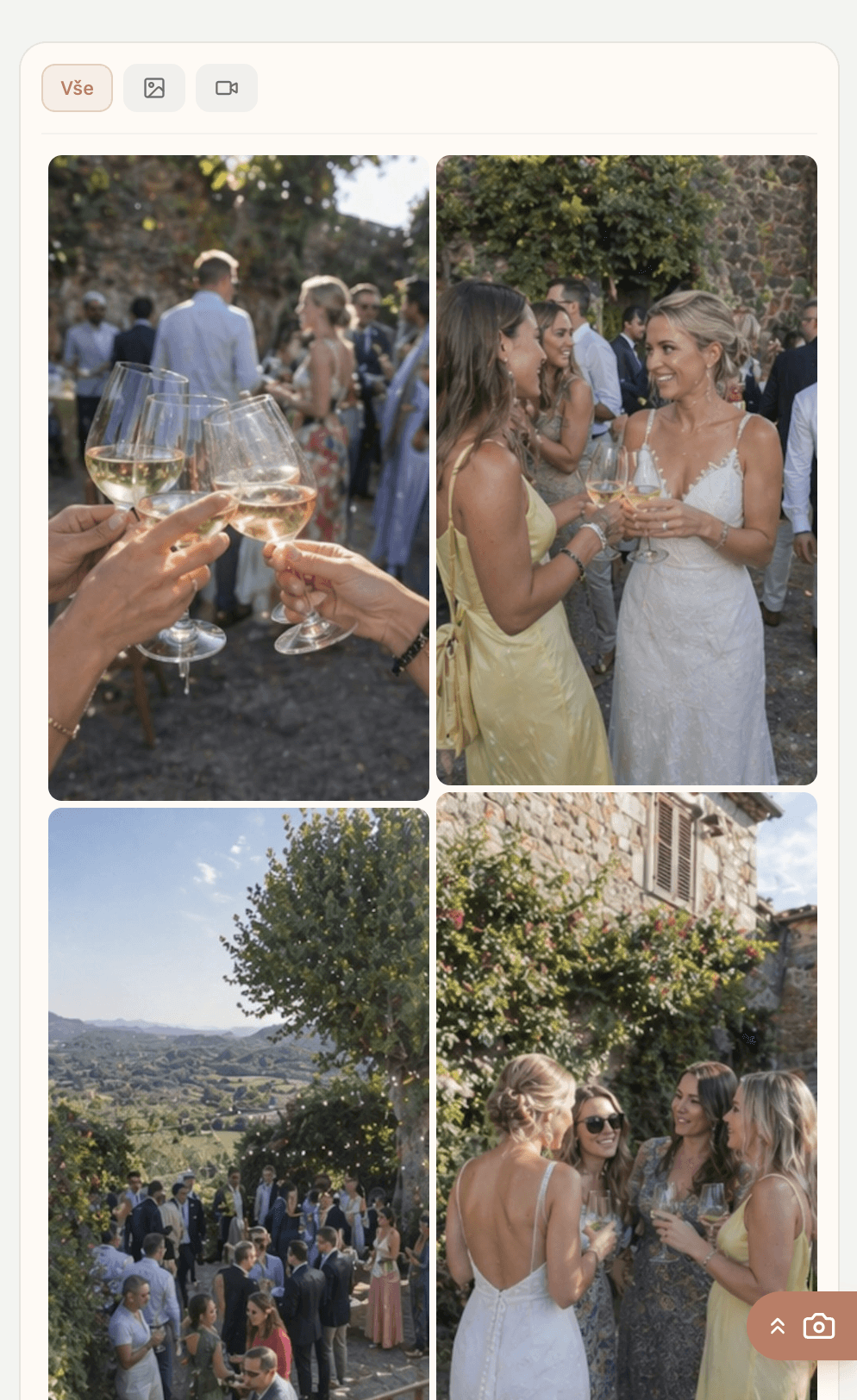
With Wediary, you choose whether to collect photos and videos in your private gallery or share them instantly with your guests. The Shared Gallery appears directly on your upload page - right below your photo and the upload button. Guests don’t need to click away or follow a different link, everything is in one place.
The Shared Gallery is a seamless way to share wedding memories without anyone needing to download apps or forward files. It gives you complete control over how your media is displayed. You can choose between two modes:
Live Mode
In this mode, the gallery is fully automated. As soon as a guest uploads a photo or video, it instantly appears for everyone else to see in the Shared Gallery on your upload page.
Best for: Instant sharing. Guests can enjoy every captured moment in real-time.
Curated Mode
In this mode, uploaded media does not appear automatically. Only you can see the uploads in your account, allowing you to hand-pick which ones to publish for your guests to see.
Best for: Content control. Guests will only see the specific photos and videos you manually approve for sharing.
Sharing Later & Guest Notifications
If you prefer to launch your Shared Gallery after the wedding, you can use our email notification system. This solves the problem of how to let everyone know when new content is ready to view.
Once you’ve sorted through your media and are ready to go live, you can send a bulk notification from your account. Any guest who provided their email address will receive an update with a direct link back to your Wediary page.
Sharing Professional Photos
Do you have a professional photographer or videographer? With our Plus Plan, you can use the Shared Gallery to share their high-quality work alongside guest uploads. You can upload these files directly in your account and optionally tag them with a label so guests can find them easily in the Shared Gallery. No more juggling external links or cloud storage folders - everything stays in one place.
Feature Summary
Shared Gallery Status | What do guests see? | When to use it? |
Off | Upload only | When you want to keep all media private for your eyes only. |
Live Mode | All media instantly | When you want everyone to see every moment as it happens. |
Curated Mode | Selected media only | When you want to filter and choose the best shots before sharing. |
Professional Media | Professional photos & video | To share high-quality media in one place. |
Notifications | Email with direct link | To invite guests back to the gallery after the wedding. |